v1.0.28 / QUICK GUIDE
Current-version quick guide
Zoom and monitor
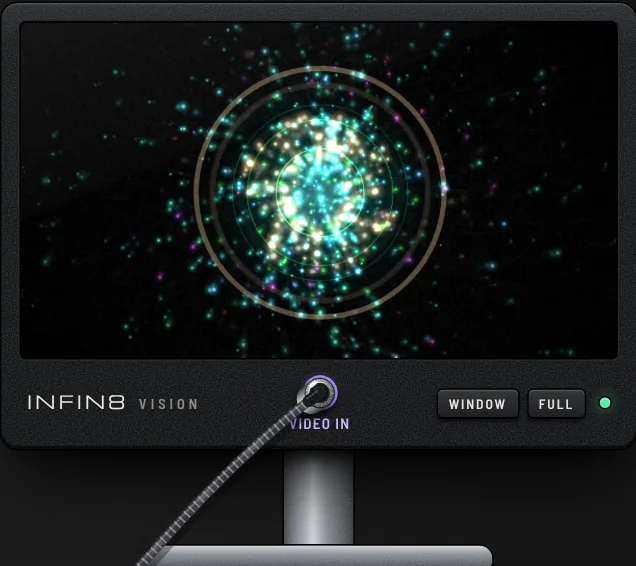
Use ZOOM −/+ beside MASTER; keep pressing − to fit. ▁ minimizes the monitor and ⤢ restores it. WINDOW opens a separate window; FULL enters fullscreen.
Slice samples and record audio
Choose SLICE or WHOLE with RANGE, then use PLAY, LOOP or SAVE. Zoom the waveform with the wheel or −/+ and drag to scroll. REEL records the patched audio as WAV or MP3.
Connect your DAW
Install BlackHole (Mac) or VB-CABLE (Windows), route your DAW output to it, then select that input with CONNECT/NEXT in FROM DAW IN. The hosted page cannot run an operating-system installer. CLOCK AUDIO follows incoming audio; MIDI receives clock. Link requires the local launcher. TO DAW OUT selects an output device in supported browsers. Avoid routing both directions through the same cable.
Record and share on social
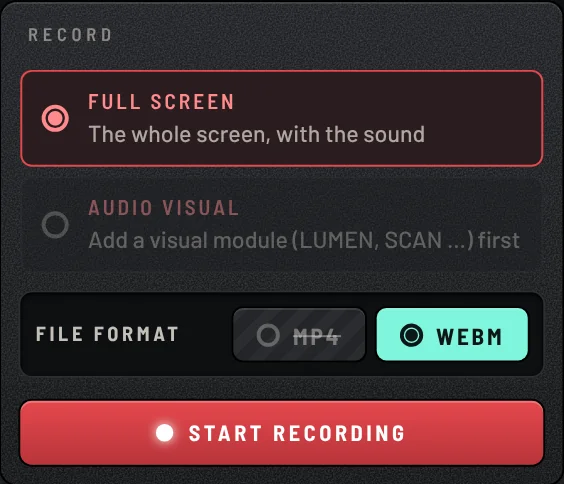
REC → FULL SCREEN (rack) or AUDIO VISUAL (visual output) → MP4/WEBM → START RECORDING. Allow the tab and audio if screen sharing is requested. Save the recording and upload it to your social channel. Format support varies by browser.
Share a sound and make an SNS clip
Use Share this sound in the menu to copy a patch link. Opening it loads the same sound. In REC, choose SNS CLIP 15 s or 30 s for an automatically saved 9:16 vertical video. MIDI Learn mappings are remembered in the browser and reused for matching module types in other lessons.
Guitar input, amplifier and backing tracks
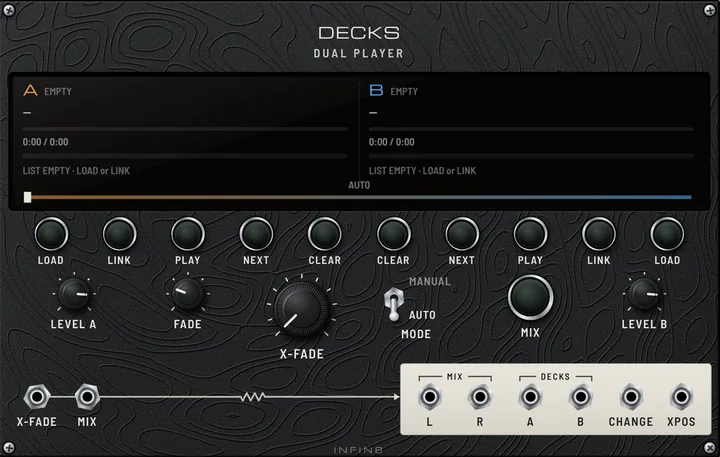
Lesson 19 PLUG IN AND PLAY uses GUITAR INPUT → FORGE with JAM DECK for backing tracks. Click the input screen to choose an interface and use LATENCY to change the buffer. Devices without reported output delay automatically measure round-trip latency after switching. Open the instrument in its own tab if microphone permission is blocked.
In JAM DECK, choose FILE LOAD or YOUTUBE LINK inside ADD SONG. iPhone file selection is improved; accepted files now also include MP4, AIFF, CAF and Opus, with playback depending on browser codec support. Change songs with ◀ / ▶ and click the playback bar to seek. Local files stay in this browser and must be loaded again on another device. YouTube plays through a separate player, bypassing cables, REMOVE and MASTER; use LEVEL for its volume.
On phones, pinch and pan with two fingers up to 6×. Swipe empty rack space or case edges with one finger to move sideways.
Since v1.0.28, readable JSON patch links from section 18 of the module spec open directly in the rack. Use the instrument address (/demo/index.html#p=…). Explore LADDER, PEAK·20 and SQUARE ONE in lessons 7 and 25.
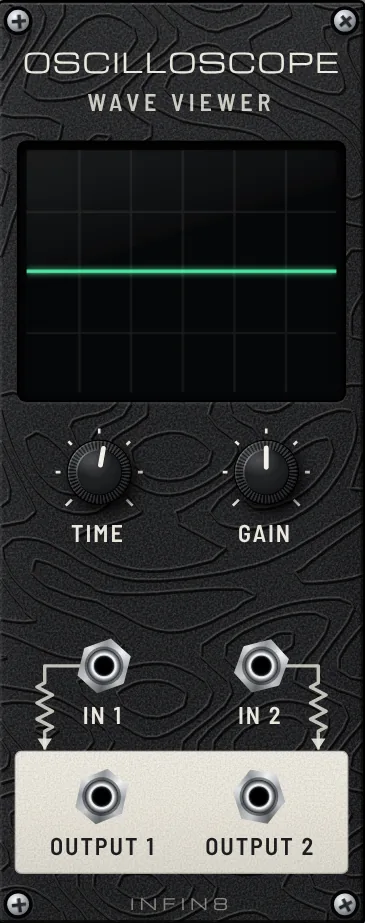
Explore new lessons 6 WHAT IS A GATE and 47 TAPE GENES. OSCILLOSCOPE scrolls at TIME above 0.2 seconds to show gates and envelopes. The AI module spec download is now one complete file, MUHAN_SPEC_ALL.md.
On MUTAGENE, press anywhere inside the white REC or SPLICE boxes, or the ring around SHIFT, to operate each button.
MUTAGENE now scrubs SLIDE immediately, previews reels during selection, and stops recording on REC press. Storage errors are shown and concurrent reel writes are protected. Tiny genes retain EOSG pulses, and WAV export uses 48 kHz.
MUTAGENE waits for the previous module to finish saving when reopening a lesson or patch, keeping the same reel. Automatic MIDI connection is quiet; pressing the MIDI button shows connection feedback.
MUTAGENE returns to its original reel when another tab releases it. If you have already recorded on the temporary reel, it keeps that reel. Reel notices distinguish another module in this patch from another tab or window.
Tablets open in desktop view and can switch to mobile view from the top bar. Phones and tablets automatically use LITE to reduce decorations and update module screens, cable signals and video about 20 times per second. Computers retain full effects. Touch devices default to balanced audio latency unless you selected another setting.
MIDI LEARN now supports switches and momentary buttons as well as knobs: MIDI LEARN → click the on-screen button → press the controller button. Connected controller names and guidance are shown. If Windows cannot open a port, close other DAWs, manufacturer software and MUHAN MODULAR tabs, then reconnect. Lessons 49 and 50 now use 136 BPM.
File → Export for offline use bundles the app, current patch, MIDI links, note, browser-stored reels, songs, videos and installed modules into one HTML file. Move it to another computer and open it without internet. A notice identifies any data that could not be included.
Use File → Export for offline use to save an offline HTML file. MASTER volume supports MIDI LEARN, and its link is saved with the patch. The view tab sits at the top right; the mini video monitor sits at the bottom right, just above the LINE OUT bar. MIDI connection guidance appears for first-time devices and when reconnecting a controller.
Exported offline files show their file name, offline availability and last-changed date in the case header. The browser tab also shows the file name. The view switch sits in the centre in mobile view and uses a small top-right tab in desktop view.
MIDI LEARN now accepts note buttons as well as CC controls, including controller MUTE, REC ARM and SOLO buttons. Button lights on supported controllers follow the linked on/off state in the app.
v1.0.28: MIDI OUT and LESSON 46 PLAY VCV RACK send clock, notes and CC to VCV Rack and bring its audio back. Offline export asks for a file name; opening the file shows a larger OFFLINE MODE badge. Opening another lesson, patch or new rack returns to normal mode. Case MUTE supports MIDI LEARN, with controller lights matching the screen.
Use File → Export for offline use; the duplicate button in PROJECT has been removed. Offline files show a module-style display with a pulsing amber OFFLINE MODE light, file name and last-changed time.
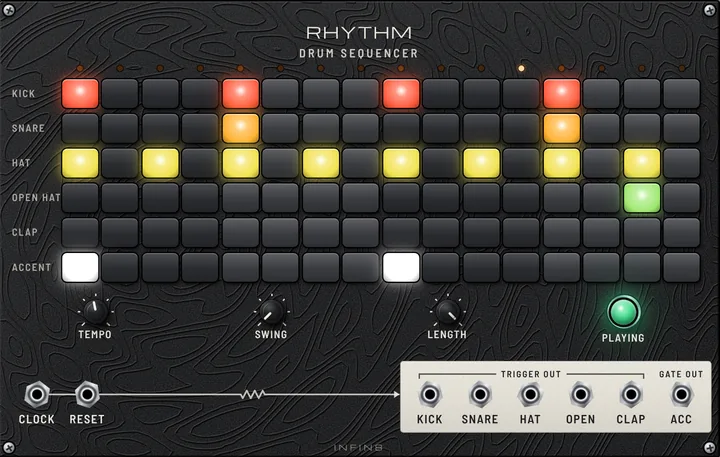
v1.0.28: FIRE connects an Akai Fire’s 4×16 pads to RHYTHM steps. Use PATTERN ▲▼ to scroll rows, PLAY / STOP for transport, and the knobs for tempo, swing and length. The list under the screen selects the target RHYTHM. Lesson 26 is in ADVANCED; lessons 49 and 50 are in SIGNATURE TONE.
v1.0.28: Module screens and cable light pause while scrolling and resume after it stops, reducing drawing work. FIRE selects its target from the RHYTHM list under the screen and saves the choice with the patch.
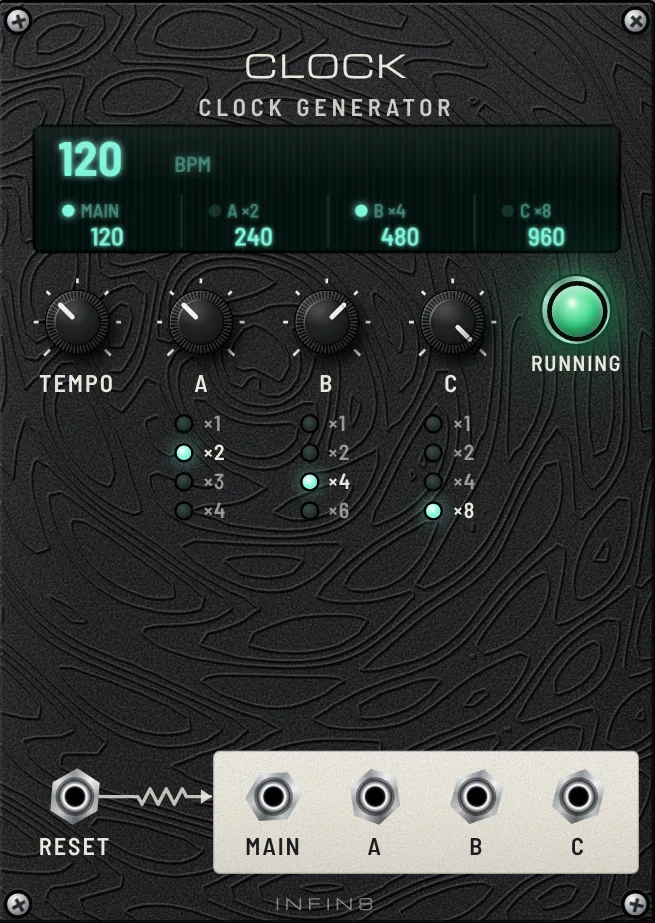
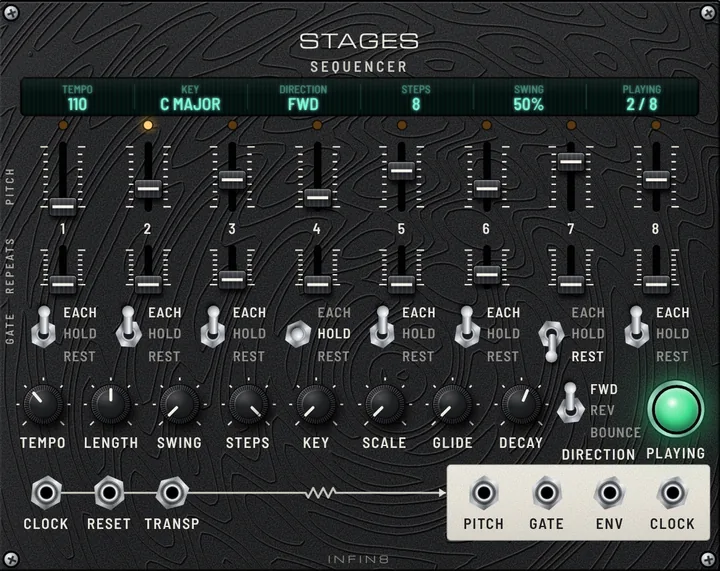
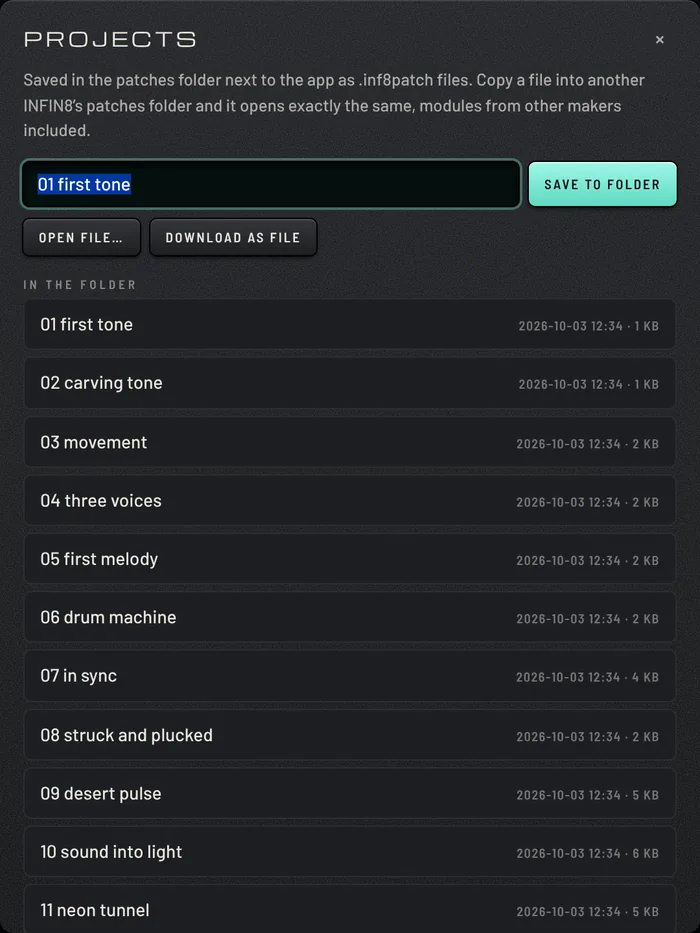
v1.0.28: The top menu is grouped into Add module, File, Share, View and Create. File contains New rack, Open, Save and offline export; Share contains patch links; View toggles Cable light; Create opens the custom-module guide. OUTPUT is beside LINE OUT in the bottom bar. STAGES has a compact one-line LCD, longer PITCH sliders and a REP label. CLOCK puts TEMPO, RUN and SYNC above the A, B and C multiplier knobs.
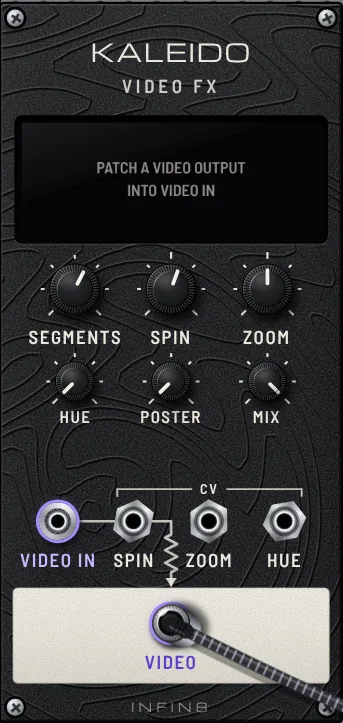
v1.0.28: The minimized monitor sits at the bottom right above the LINE OUT bar and rises with the floating bar; its VIDEO IN cable follows. LINE OUT cables fade and let clicks through near the bottom bar, making OUTPUT and NOTE easier to use.
v1.0.28: Top-menu items respond to taps in iPhone Safari. A faint dotted line from FIRE to its target RHYTHM shows which sequencer it controls.
v1.0.28: The mini monitor fades only while dragging a cable; moving the mouse near it keeps the display visible.
v1.0.28: The OUT meter beside MUTE shows the left and right speaker output levels with six LED segments per channel, coloured green, yellow and red.
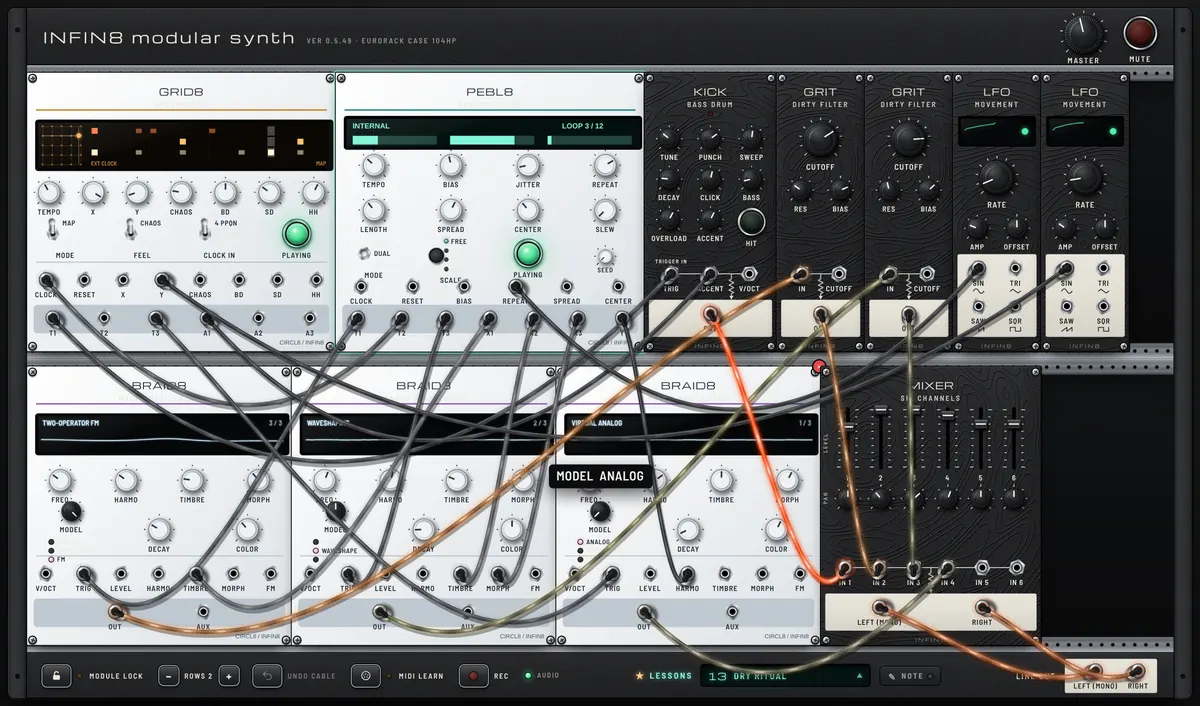
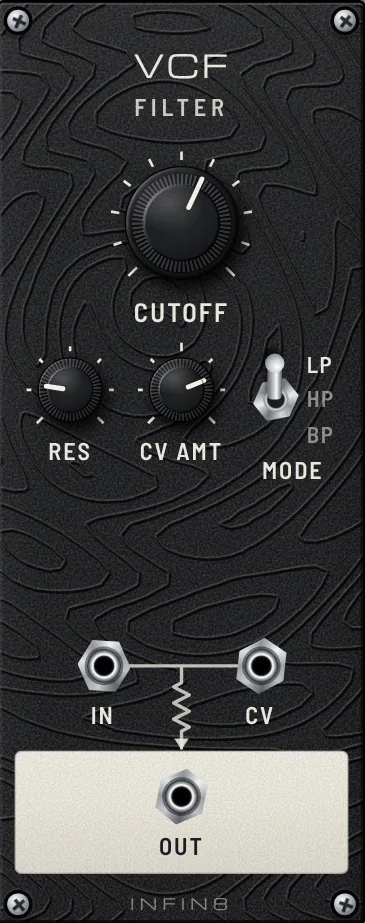
v1.0.28: Use SWEEP to remove bass and build tension with FILTER and BREAK; CLOCK with QUANT aligns the drop to the beat. New lessons 13 BREAK & DROP and 52 NOISE PRAYER appear after lesson 11.
v1.0.28: Lesson numbers now follow the list from 01 to 52. NOISE PRAYER is 12, BREAK & DROP is 13, PLAY VCV RACK is 46, MIDNIGHT 808 is 49 and MIDNIGHT MOOG is 50. Existing patches and links keep working.
v1.0.28: File now has separate Open and Save actions, with Ctrl+O and Ctrl+S shortcuts.